

Description
Download MyRecover – Free Data Recovery Software for Windows (Secure, Fast & Reliable)
MyRecover is a powerful, free data recovery tool designed specifically for Windows users who have experienced accidental file deletion, disk formatting, system crashes, or virus attacks. This user-friendly software simplifies the recovery process with a three-step interface that anyone can follow, even without technical expertise. Whether you're a student, professional, or home user, MyRecover helps restore lost documents, photos, videos, music, emails, and more—up to 200 different file types—without altering the original file structure. Built with advanced scanning technology, MyRecover uses both Quick Scan and Deep Scan modes to detect and recover files from various storage devices, including internal hard drives, SSDs, USB drives, memory cards, and external hard disks. It supports major Windows file systems like NTFS, FAT32, exFAT, and ReFS, ensuring compatibility with Windows 11, 10, 8, 7, and Windows Server. With its secure, non-destructive recovery process, MyRecover ensures that your data is restored safely and efficiently. The software is completely free to download and use, making it an excellent choice for anyone seeking a reliable, no-cost solution to recover lost data.
Advanced Recovery Technology for Maximum Success
One of the standout features of MyRecover is its dual-scan recovery system, combining Quick Scan and Deep Scan technologies to maximize file recovery rates. The Quick Scan mode is ideal for recently deleted files, scanning the file system metadata to locate and restore files within seconds. This fast method works efficiently when the data has not been overwritten and is perfect for urgent recovery needs. For more complex or deeply lost data—such as files after formatting, system crashes, or severe corruption—MyRecover activates the Deep Scan mode. This advanced algorithm performs a thorough, sector-by-sector analysis of the storage device, searching for file signatures and remnants that standard scans might miss. This ensures that even files with fragmented data or incomplete metadata have a high chance of being recovered. The software’s intelligent file recognition engine identifies over 200 file types, including common formats like DOCX, PDF, JPEG, MP4, MP3, PST, and more, preserving original file names and folder structures during recovery. What makes MyRecover truly reliable is its non-destructive recovery process—no changes are made to the original disk during scanning, so you can safely explore results without risking further data loss. Additionally, the software maintains a clean, intuitive interface with real-time progress tracking, so users can monitor the recovery process and estimate completion time. Whether you're recovering a single photo or an entire project folder, MyRecover delivers consistent performance across different storage media, including SSDs, USB drives, SD cards, and external hard drives. Its lightweight design ensures minimal system resource usage, so it won’t slow down your computer during scans. This combination of speed, depth, and safety makes MyRecover a top-tier choice among free data recovery tools.
Simple Installation, Easy-to-Use Interface for All Users
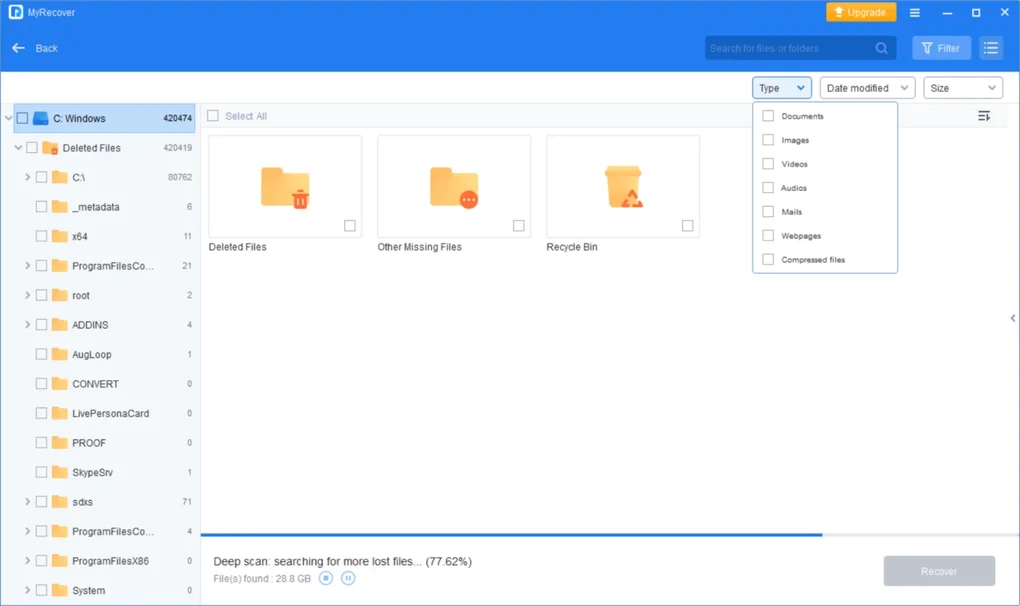
Getting started with MyRecover is straightforward, thanks to its seamless installation and beginner-friendly interface. To download and install the software, simply visit the official website and click the "Download Free" button. The installer is lightweight, typically under 10MB, and installs in under a minute. During setup, users are guided through a minimal configuration process with no bundled adware or third-party software—ensuring a clean, secure installation. Once launched, MyRecover presents a clean dashboard with three simple steps: Select Device, Scan, and Recover. First, choose the storage device from which you want to recover files—this could be your internal drive, a USB stick, or a memory card. The software automatically detects all connected drives, making selection quick and intuitive. Next, select your scan type: Quick Scan for faster results or Deep Scan for comprehensive recovery. The scanning process runs in the background, and users can pause or stop it at any time. After scanning completes, MyRecover displays a categorized list of recoverable files, organized by type and location. You can preview files before recovery to ensure they’re intact and correctly restored. The recovery process allows you to choose a safe destination folder—ideally, a different drive than the one being recovered from—to prevent overwriting any existing data. This precaution is crucial for preserving the integrity of recovered files. The entire workflow is designed with simplicity in mind, making MyRecover accessible even for non-technical users. Whether you're a student recovering a term paper or a photographer restoring lost images, the tool adapts to your needs without requiring training or technical knowledge. Regular updates are released to improve compatibility and fix bugs, ensuring the software stays current with evolving Windows versions and storage technologies. With no hidden costs or subscription fees, MyRecover remains a free, trustworthy tool for everyday data recovery.
Compatibility, Security, and Performance Across Devices
MyRecover is engineered for broad compatibility with modern Windows systems, supporting Windows 11, Windows 10, Windows 8, Windows 7, and Windows Server editions. This wide range of support ensures that both home users and enterprise environments can benefit from its recovery capabilities. The software is optimized to work with various storage devices and file systems, including NTFS, FAT32, exFAT, and ReFS—making it suitable for internal drives, external hard disks, USB flash drives, SD cards, and memory sticks. Whether you're using a traditional HDD or a high-speed SSD, MyRecover adapts its scanning strategy to deliver consistent performance. One of the most important aspects of any data recovery tool is security, and MyRecover excels here. All operations are non-destructive—meaning no data is written to the source drive during scanning or recovery. This eliminates the risk of overwriting lost files, which is a common cause of failed recovery attempts. The software also does not require administrative privileges for basic operations, allowing users to run it with standard permissions. Performance-wise, MyRecover is highly efficient, leveraging multi-threading and optimized algorithms to minimize scan time without sacrificing accuracy. It uses minimal CPU and RAM during operation, so your computer remains responsive while scanning. For users concerned about privacy, MyRecover does not collect or transmit any personal data or file contents. The software operates entirely offline, ensuring your sensitive files remain private. Additionally, it supports batch recovery, allowing you to restore multiple files at once with a single click. This is especially useful when recovering large folders or entire project directories. The recovery results are displayed with clear file previews, so you can verify the integrity of each file before saving. With its secure, fast, and reliable performance across diverse devices and scenarios, MyRecover stands out as a dependable choice for users seeking a free, no-risk data recovery solution.
Pros and Cons: A Balanced View of MyRecover
- Pros:
- Free to download and use with no hidden costs
- Simple three-step recovery process—ideal for beginners
- Supports Quick Scan and Deep Scan for maximum recovery success
- Compatible with NTFS, FAT32, exFAT, and ReFS file systems
- Recovers over 200 file types including documents, photos, videos, and emails
- Non-destructive scanning preserves original data integrity
- Works with USB drives, SD cards, external HDDs, and SSDs
- Lightweight with minimal system resource usage
- Secure, offline operation with no data collection
- Cons:
- Only available for Windows platforms (no Mac, Android, or iOS version)
- Advanced features like file filtering and recovery to specific locations require the paid version
- Deep Scan can take several hours on large drives
- No built-in backup or scheduling features
- Limited customer support for free users
Frequently Asked Questions (FAQ)
Is MyRecover safe to use?
Yes, MyRecover is completely safe to use. It performs non-destructive scans, meaning it reads data from the storage device without modifying or overwriting any existing files. This ensures your original data remains intact throughout the recovery process. The software does not collect or transmit your personal data, and all operations are performed locally on your device.
Can I recover files after formatting a drive?
Yes, MyRecover is specifically designed to recover files after disk formatting. Using its Deep Scan mode, the software searches for file signatures and remnants on the drive, even after formatting. The success rate depends on how much new data has been written to the drive since formatting, but many users have successfully recovered files from formatted drives.
Does MyRecover work on SSDs and USB drives?
Absolutely. MyRecover supports a wide range of storage devices, including SSDs, USB flash drives, SD cards, external hard drives, and memory sticks. Its advanced scanning algorithms are optimized for different drive types, ensuring reliable recovery across various media.
Can I preview files before recovering them?
Yes, MyRecover includes a built-in file preview feature. You can preview documents, images, videos, and audio files directly within the software before deciding to recover them. This helps you verify the file’s integrity and ensures you only restore what you need.
Is MyRecover available for Mac or mobile devices?
Currently, MyRecover is only available for Windows platforms. There is no official version for Mac, Android, or iOS devices. However, users on other operating systems may consider alternative recovery tools compatible with their system.
Final Verdict: Why You Should Download MyRecover Today
If you’ve ever lost important files due to accidental deletion, formatting, or system failure, MyRecover offers a reliable, free solution to get your data back. With its intuitive interface, advanced scanning technology, and strong compatibility with Windows systems and storage devices, it stands out as one of the most effective free data recovery tools available. While it lacks support for Mac and mobile platforms, its performance on Windows is exceptional, delivering fast results with high recovery success rates. The non-destructive scanning process ensures safety, and the ability to preview files before recovery adds an extra layer of confidence. Whether you're recovering a single photo or restoring an entire project, MyRecover makes the process simple and stress-free. For users who need a secure, fast, and free data recovery tool, MyRecover is an excellent choice. Download MyRecover now and protect your digital life with confidence.
Guides & Tutorials for MyRecover
How to install MyRecover
- Click the Preview / Download button above.
- Once redirected, accept the terms and click Install.
- Wait for the MyRecover download to finish on your device.
How to use MyRecover
This software is primarily used for its core features described above. Open the app after installation to explore its capabilities.
User Reviews for MyRecover 0
No reviews found





